
An AI Video Quality Checklist Before You Export
Find the defect, choose the right fix and inspect the actual exported file. A practical decision guide for regeneration, trimming, upscaling, captions and compression.
Decide what would prevent delivery
A soft clip, a changing product and a wrong subtitle are three different problems. Paying for another full generation is not the right first response to all of them. Our team reviews the subject first, the edit second and the final-file requirements last.
Use a coral running-shoe reveal as the example. The shoe must retain its ivory sole, charcoal heel tab and diagonal stitching. The motion should reveal the product clearly, and the final vertical file must leave space for the approved message. Those requirements decide whether a clip is useful.
Write the required aspect ratio, delivery dimensions, sound behavior and maximum file size before finishing. Keep them separate from creative preferences such as a warmer background. A delivery blocker needs fixing; a preference needs a decision about whether another attempt is worthwhile. Keep this AI video quality checklist beside those delivery requirements.
Run a playback pass and a detail pass
Watch the complete clip once at normal speed before pausing. Does the camera move serve the reveal? Does the ending have enough time to read the message? An abrupt final jump may be more distracting than a small texture imperfection visible only when paused.
Then inspect the shoe at the opening, the midpoint of its movement and the final frame. Compare the heel tab, sole boundary and stitching with the accepted reference. Watch moments where the shoe rotates or overlaps another object; those are the places where a changed silhouette matters.
Finally place the clip in the intended vertical crop. A safe detail in the workspace preview can disappear under captions or interface controls in the final placement. Keep the product and message inside the actual layout rather than checking only the uncropped source.
Choose between regeneration, trimming and enhancement
A warped heel needs a new or revised shot because its content is wrong. A weak last moment may be removable with a clean trim. A correct but undersized picture may be a candidate for upscaling. Diagnose the failure before adding another processing stage.
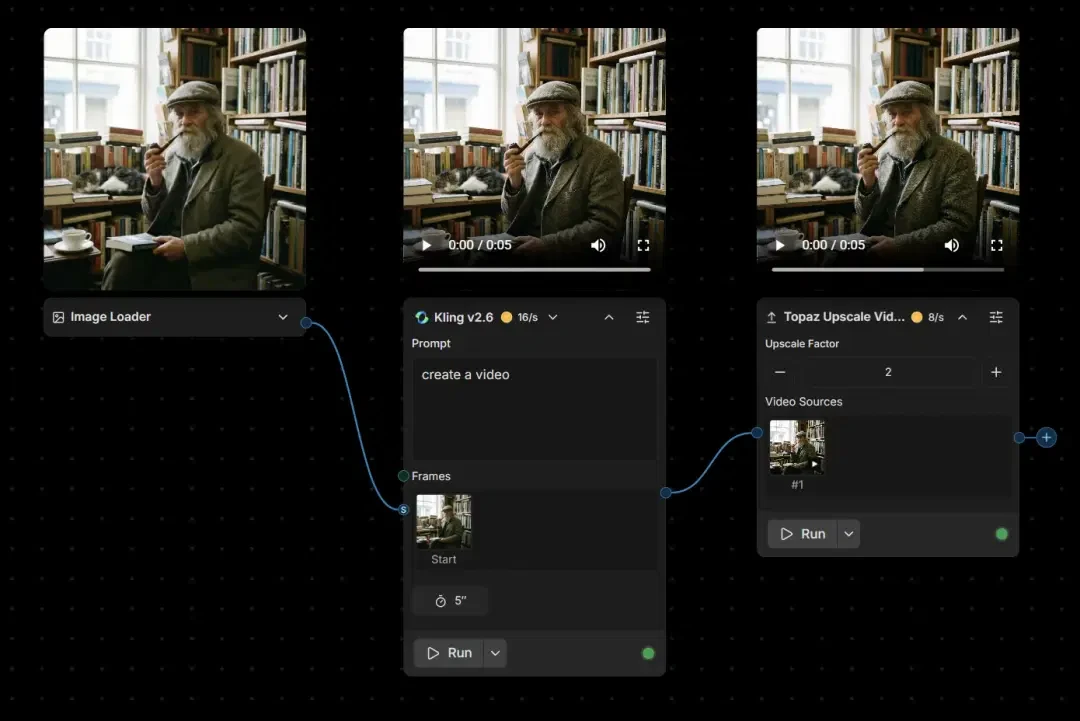
YouArt’s Topaz Video AI and FlashVSR tools offer scaling options. Treat them as finishing routes for a clip whose content you have already approved. More pixels do not restore an accurate product shape that never existed in the source.
Review the processed file against the original at the same display size. Increased sharpness can make an artifact easier to see. Keep the source clip so you can return to it if smoothing, sharpening or another processing choice changes the intended appearance.
| What you see | First action | Check afterwards |
|---|---|---|
| Product changes shape | Revise or regenerate the affected shot | Reference identity through the entire clip |
| Only the last moment fails | Trim if the useful action is complete | Pacing and ending hold |
| Correct content, insufficient dimensions | Consider Topaz or FlashVSR upscaling | Textures, edges and motion |
| Wrong words or cue timing | Edit subtitle text and cues | Spelling, synchronization and placement |
| Approved file is too large | Compress a delivery copy | Playback, size and moving detail |
Treat captions as part of the final composition
In YouArt’s Auto Subtitle Generator, automatic speech recognition creates a draft you can correct. Review names, product terms and cue timing before choosing a visual preset. A correct sentence still fails when it arrives after the speaker has finished or covers the shoe.
Choose the output you need. SRT carries subtitle text and cue times; a rendered captioned video carries the visible style in the picture. Do not expect an SRT download to retain fonts, colors or animated emphasis.
Preview the lightest and darkest moments with the captions visible. Use a readable size, clear contrast and a position that does not hide the product or final call to action. Review once with sound and once muted so the visual message remains understandable.
Compress a delivery copy, then play that copy
Keep the approved master before compression. YouArt’s Video Compressor offers target-size and quality modes, with further format and audio settings. Use a target size when an upload destination has a real file limit; otherwise compare quality and file size rather than choosing the smallest output blindly.
For the shoe clip, inspect the mesh upper and the moving sole edge after compression. Fine texture and motion can reveal damage that a paused thumbnail hides. Check sound as well: a file-size adjustment should not accidentally remove an intended audio track.
Open the saved output outside the editing workspace and test it in the destination layout. Confirm the actual dimensions, duration, sound, file size and playback behavior. A successful preview in one browser does not prove that a differently encoded export will work everywhere.
- Keep an untouched approved master and a clearly named delivery copy.
- Read the exported dimensions rather than inferring them from an upscaling badge.
- Check the finished file after captions and compression, not only before them.
- Keep the original soundtrack and permissions record with the project.
Write a revision request that names one failure
If the shoe deforms at a particular moment, record that timestamp and the affected feature. Preserve the accepted reference, lighting and camera direction while changing the part that failed. A request to “make it better” can produce a new set of problems without resolving the first one.
Use the note below to hand off a specific content fix. For an editing defect, write the relevant instruction instead: trim the final jump, move the caption or change the delivery encoding. The operator should be able to tell whether the next action belongs in generation or finishing.
Stop when the file meets the brief and delivery requirements. Save the accepted version with its shot identifier and revision number, and record why it passed. That gives a later change request a clear starting point instead of reopening every creative decision. Reuse the AI video quality checklist when the brief or destination changes.
Product-motion revision note
Shot B, midpoint of the reveal: the coral shoe heel tab stretches and the ivory sole changes shape. Keep the accepted reference, three-quarter composition, lighting and slow camera direction. Revise the motion so the heel tab, sole boundary and diagonal stitching remain consistent throughout. Add no new objects or transformations. Inspect the midpoint and ending against the original reference before accepting the replacement.
Plan the sequence before generating →Record revision usage →
Frequently asked questions
Should I check every frame?
Begin with normal playback, then inspect moments where the subject turns, interacts or changes direction. Use more detailed inspection when small product or character details are central to the delivery.
What is the most important first check?
Return to the brief and confirm that the subject and message are clear. A polished clip is not ready if it changes the product or fails the intended use.
Can I fix every issue by adding more instructions?
More instructions can introduce new variables. Name the defect, preserve accepted details and choose an available revision operation suited to that problem.
Why should I open the exported file separately?
The final file is what the audience receives. Check playback, crop, dimensions and audio outside the workspace so you are reviewing the actual deliverable.
How do I know when to stop revising?
Stop when the clip meets the agreed requirements. Keep optional creative preferences separate from defects that prevent approval, and review the remaining budget before another attempt.