
YouArt AI Features: Images, Video & Creative Workflows
Images, short videos and an editable canvas. Here is how we would put YouArt’s tools to work on a creative project.
What YouArt actually does
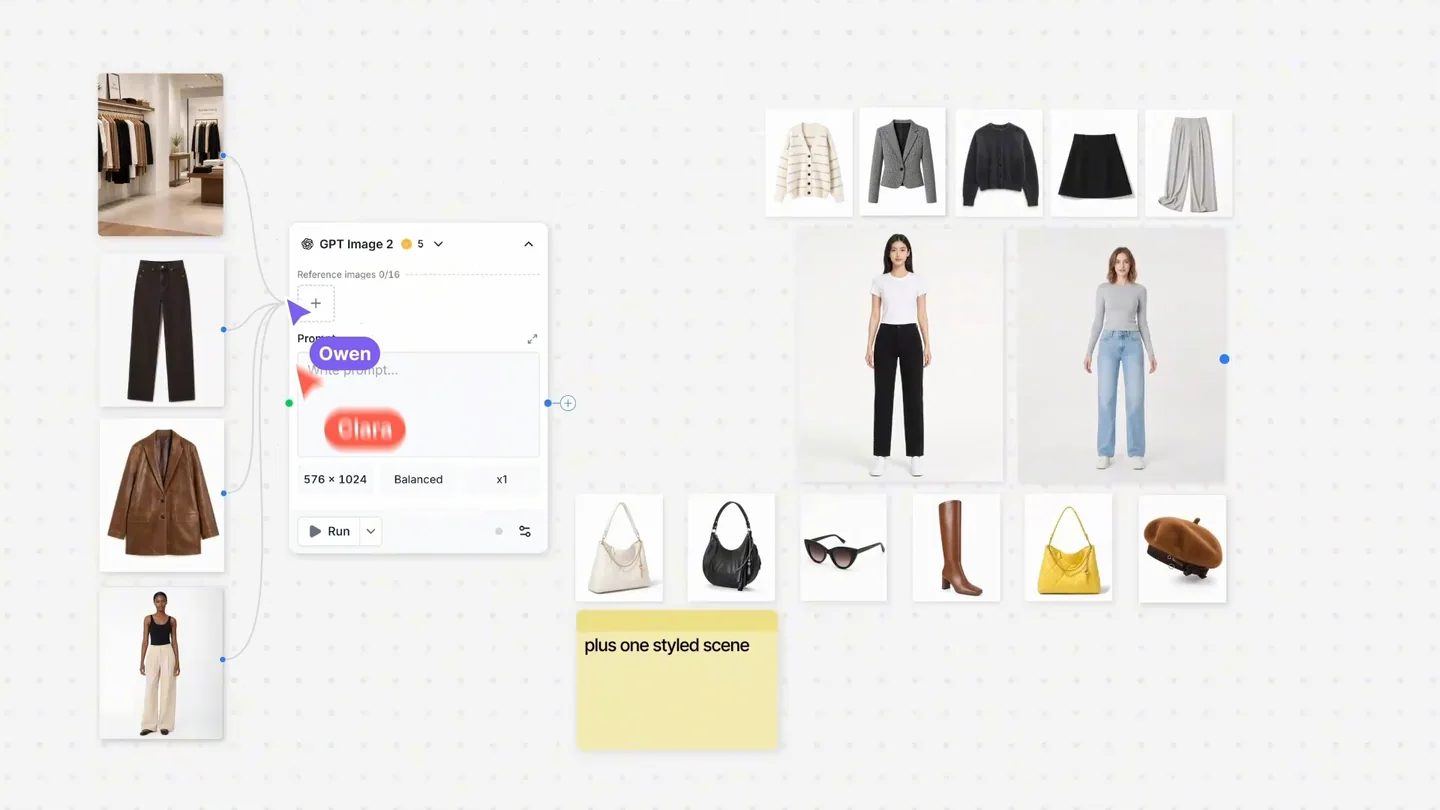
YouArt brings image and video model choices, a Creative Agent and an editable workflow into one workspace. Instead of treating every generation as a separate job, you can keep references, creative decisions and the next step together on the canvas.
Our team sees the strongest use case in a campaign that needs several related assets: a product image, a few visual variations and a short clip. The value is the connection between those stages. For the full buying decision, read our YouArt review or compare the plans.
In its workflow builder guide, YouArt describes the handoff this way. Wire the outputs of one model directly into the inputs of another.
For a product reveal, that lets you pass an approved still into the video step.
Image creation: find the visual direction first
A product on a clean background. The same item in a campaign scene. A character ready for the first shot. We recommend settling the image before adding motion. It gives the rest of the project a stronger starting point.
- Bring a reference: use an image you have permission to work with and identify the details that need to stay recognizable.
- Choose the model for the task: compare the available controls for composition, references and revisions.
- Keep the useful version: check the full-size image, then use the approved direction in the next creative step.
For store imagery, our priority is a recognizable product: shape, color, packaging and the items actually included. Finish exact lettering and sales copy in your usual design tool when the layout needs precise control. Follow our image creation guide →
Video creation: give your strongest image a next step
Once the image is right, a short clip can add a reveal, camera movement or a different view of the scene. YouArt’s connected approach is useful here: the chosen reference and the motion step belong to the same project.
Our advice is to begin with one clear movement. Review the whole clip, including the ending, before building a longer sequence. A campaign needs the product and subject to remain recognizable throughout the shot.
The Creative Agent and editable canvas
The Creative Agent can help organize and manipulate a workflow. The canvas keeps the individual operations visible, giving you places to adjust a prompt, change a model or revisit a creative decision.
We value a process you can inspect and revise. For a brief with several stages, that is more useful than starting a new conversation or rebuilding the project each time the direction changes.
1. Prepare the brief and references
Define the output, the subject and the details that must remain accurate. Gather the permitted reference files before asking the agent to build a larger chain.
2. Build one useful path through the canvas
Start with a reference, an image step and a short motion step. Choose a model around the controls the shot needs and review the displayed usage before running it.
3. Revise the stage that needs attention
Keep the strongest inputs and adjust the relevant operation. Our team recommends saving a clear base workflow so the next variation has a useful starting point.
Animation: connect the character, style and shots
A short story needs more than an attractive opening frame. We focus on a recognizable character and a consistent visual direction across the sequence. Begin with one approved character image and a simple movement before extending the story.
Review the middle and ending of each clip for changes in costume, identity or the surrounding scene. Short, controlled shots give you clearer decisions when assembling the final sequence.
Where our team sees the most value
Related product visuals and short videos are the clearest fit. A shared set of references can support several compositions, and an approved image can lead into motion. Keeping the project context together makes the next variation easier to organize.
The credit allowance still matters. Generation settings, retries and agent actions affect usage, so leave room for revisions as well as first attempts. Basic is a starting point for a focused project; Pro gives recurring creative work a larger allowance. Compare YouArt plans →
Common questions about YouArt features
Does YouArt combine images and video?
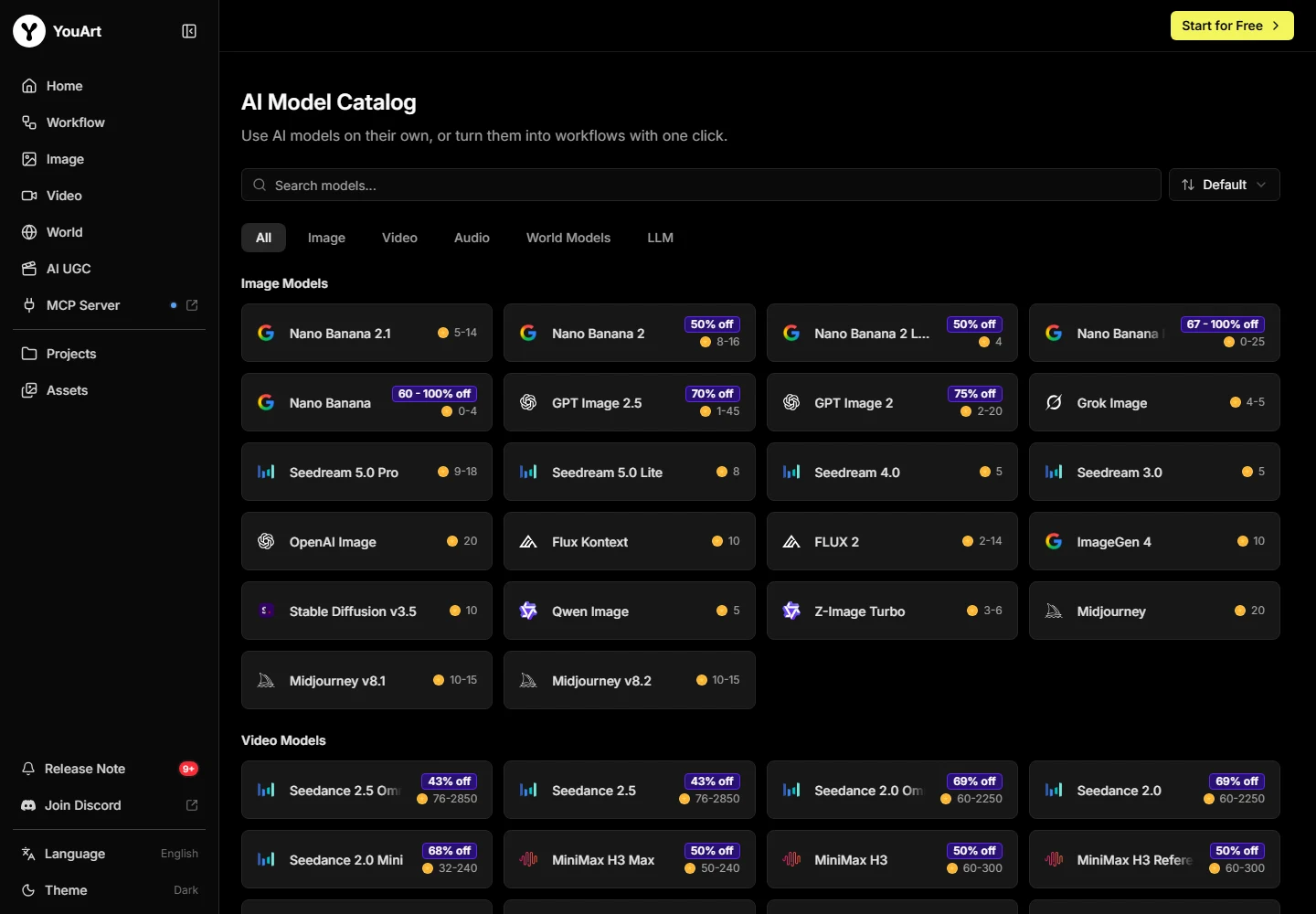
Its catalog and workflow pages list image and video operations in the same creative workspace. The specific model and settings depend on the selected workflow.
What does the Creative Agent do?
YouArt describes the agent as assisting with design, editing and workflow manipulation. Agent actions have a published credit cost.
Can I reuse a workflow for another product?
The canvas is designed around connected creative steps. Reuse the structure while reviewing each new input, operation and output against its own requirements.
Are all models unlimited?
No. Selected Free Mode options run at zero credits with queue and fair-use conditions. Other operations use credits according to the model and settings.
Will it replace Photoshop or a video editor?
That depends on the finishing work and file formats you need. Keep your existing editor until an accepted end-to-end project shows the replacement is practical.