
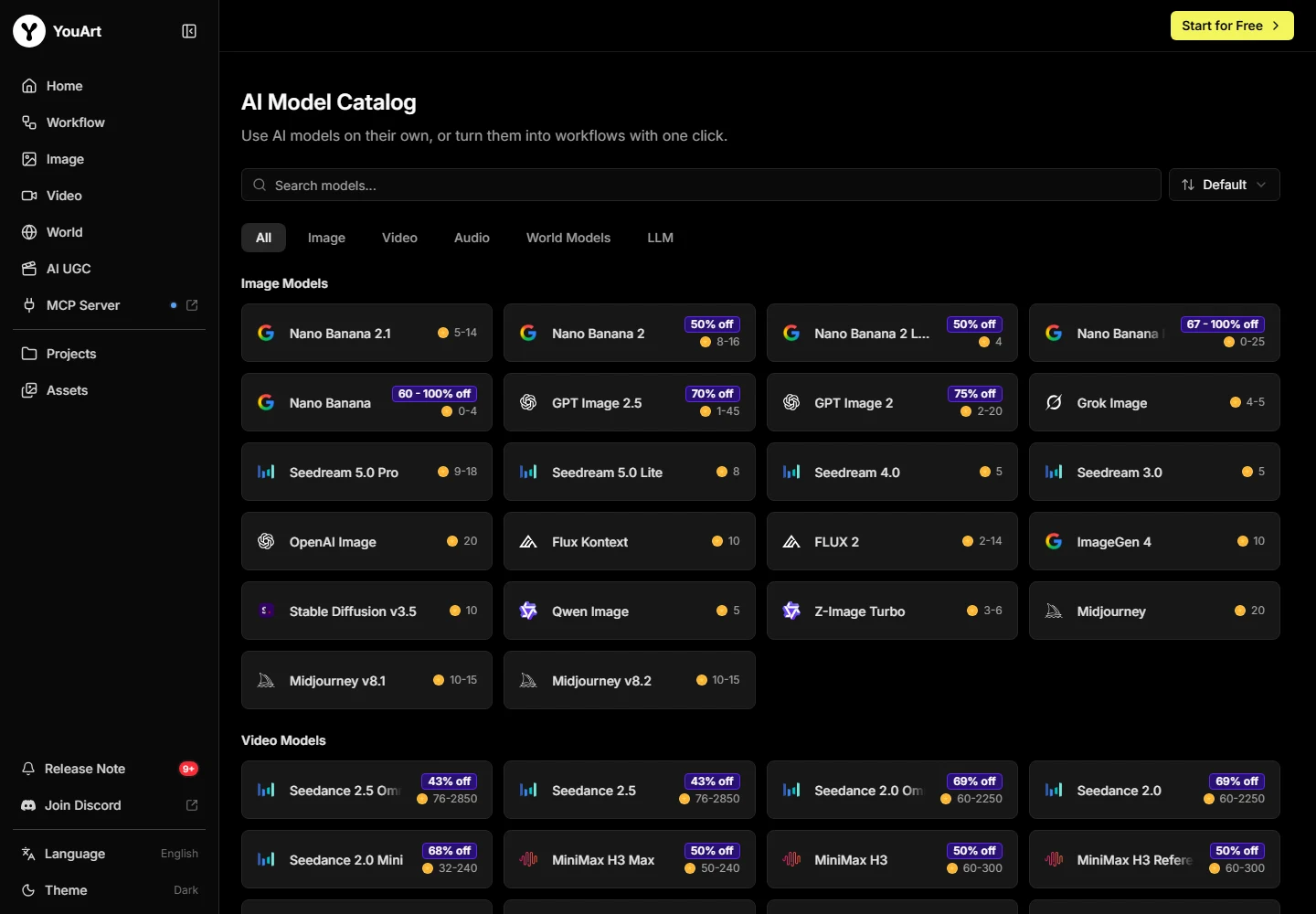
A plan price and an operation charge answer different questions
Your subscription sets the commitment and monthly allowance. An operation estimate tells you what one request is expected to consume. To budget a campaign, keep both numbers and include the requests you reject along the way.
The pricing FAQ says credit usage depends on the model and settings. It also lists agent and chat charges. A single image count on a plan card therefore cannot describe every workflow with the same precision.
Monthly allowances and purchased balances
The published policy clears unused monthly credits when the allowance renews. Separately purchased credits remain available under a different rule. Before a large job, check the balance types and the renewal date so a number on the dashboard does not become a mistaken assumption about rollover.
The public offer lists a 500-credit top-up for $5 with a subscription requirement. That top-up price should not be used to value every included plan credit as cash; the subscription commitment and access rules still apply.
Keep a project ledger that includes retries
For each operation, record the selected model, settings, displayed estimate, balance change and whether the output met the brief. Wait for unrelated jobs to finish before attributing a deduction. Keep additional processing and agent activity as separate entries.
Divide the project’s attributable usage by accepted outputs, not all outputs. If an illustrative project spends 60 units to produce six acceptable images, it uses ten units per accepted image. Use this planning example with your own project totals.
| Record | What belongs here | Why it matters |
|---|---|---|
| Operation | Model, settings and estimate | Different routes can cost different amounts |
| Outcome | Accepted, rejected or failed | Retries still affect the budget |
| Finishing | Agent actions, edits and extra processing | The first generation is not the entire workflow |
Investigate a mismatch without guessing
If a displayed estimate and balance change differ, retain the request details and wait for pending jobs or adjustments. Contact provider support with the relevant account record instead of assuming a failure was automatically refunded.
A ledger makes the question specific: which operation, which balance, what expected charge and what observed change? Avoid sharing sensitive account details in public comments.
Reduce avoidable work before buying more capacity
Write the brief before generating, use a small first attempt and change one variable per revision. Stop when an output meets the acceptance rules. These practices help you interpret effort without promising a guaranteed saving.
Compare the cost of the complete accepted deliverable against your existing workflow. A larger allowance is useful only if it addresses a real production need.
Compare the subscription plans →Plan a focused first project →
Reconcile an estimate with the actual project record
A YouArt AI credits estimate helps you decide whether to run an operation. The completed balance record helps you understand what the project consumed. Capture the operation name, settings and estimate before running, then record the result and any visible deduction afterwards. Keep agent activity and extra processing as their own entries.
If several jobs are active, do not assign the entire balance change to whichever output appeared last. Wait for the pending work to settle and compare the history available in the account. Save an unexplained error and its operation context for provider support. An estimate, a temporary display change and a confirmed charge are different observations.
Use the ledger to choose the next allowance
Group the record by deliverable: a product image series, a reveal clip or a complete short ad. Add the usage for accepted and rejected attempts, then divide by accepted deliverables within the same category. Combining simple stills and complex clips into one average can hide the part of the workflow that needs the most room.
Compare that record with the next month’s actual briefs. Leave room for new references, a difficult shot and finishing operations. Our YouArt AI credits recommendation is to buy an allowance around repeatable work, then revisit it as your workload changes. Keep purchased top-ups distinct from the monthly allowance when checking renewal and remaining capacity.
| Group | Include | Use the result for |
|---|---|---|
| Image series | First attempts, variations and repairs | A realistic recurring still-image budget |
| Video shots | Rejected clips and revisions | Room for the motion stage |
| Finishing | Caption, enhancement and delivery steps | The complete project commitment |
Frequently asked questions
Do unused YouArt credits expire?
The pricing FAQ says unused monthly allowances clear at renewal. Separately purchased credits remain available under the published policy.
Can I buy extra credits?
The public pricing page lists a 500-credit top-up for $5 and indicates that a subscription is required.
Does the agent use credits?
Yes. The public FAQ lists 2 credits per Creative Agent call and 6 per Chat message; confirm the current estimate before use.
How many credits does a video use?
The charge depends on the selected model and settings. Read the operation estimate instead of assuming a single universal video rate.
Are failed requests automatically refunded?
Do not assume that. Keep the operation details, inspect adjustments and ask support about any unexplained deduction.