
1. Define a small project
Choose one image and one short motion treatment for a fictional product. Write the audience, destination format and mandatory visual details in a few sentences. This keeps the first session focused on a deliverable rather than a tour of every feature.
Prepare only references you can use. Leave out sensitive client files while evaluating a new service. Keep the original brief and references together so revisions can be compared against something fixed.
2. Open the generation workspace
Sign in to YouArt to start generating. The workspace brings the prompt area and model controls together; review the model, access mode and usage estimate available to your account.
Choose an image route first. Enter a concise subject and composition brief, then inspect the displayed model, access mode and usage estimate. Avoid launching a long chain of operations until you understand what the individual steps do.
3. Select the image before adding motion
Generate a manageable first set and inspect the core details. Pick the image that satisfies the brief rather than the one with the most dramatic backdrop. A wrong product shape becomes harder to fix once it is animated.
Keep the prompt and settings for the selected image. If a result has one clear defect, revise that instruction first. Retain failed attempts when calculating your project cost.
4. Build the next step on the canvas
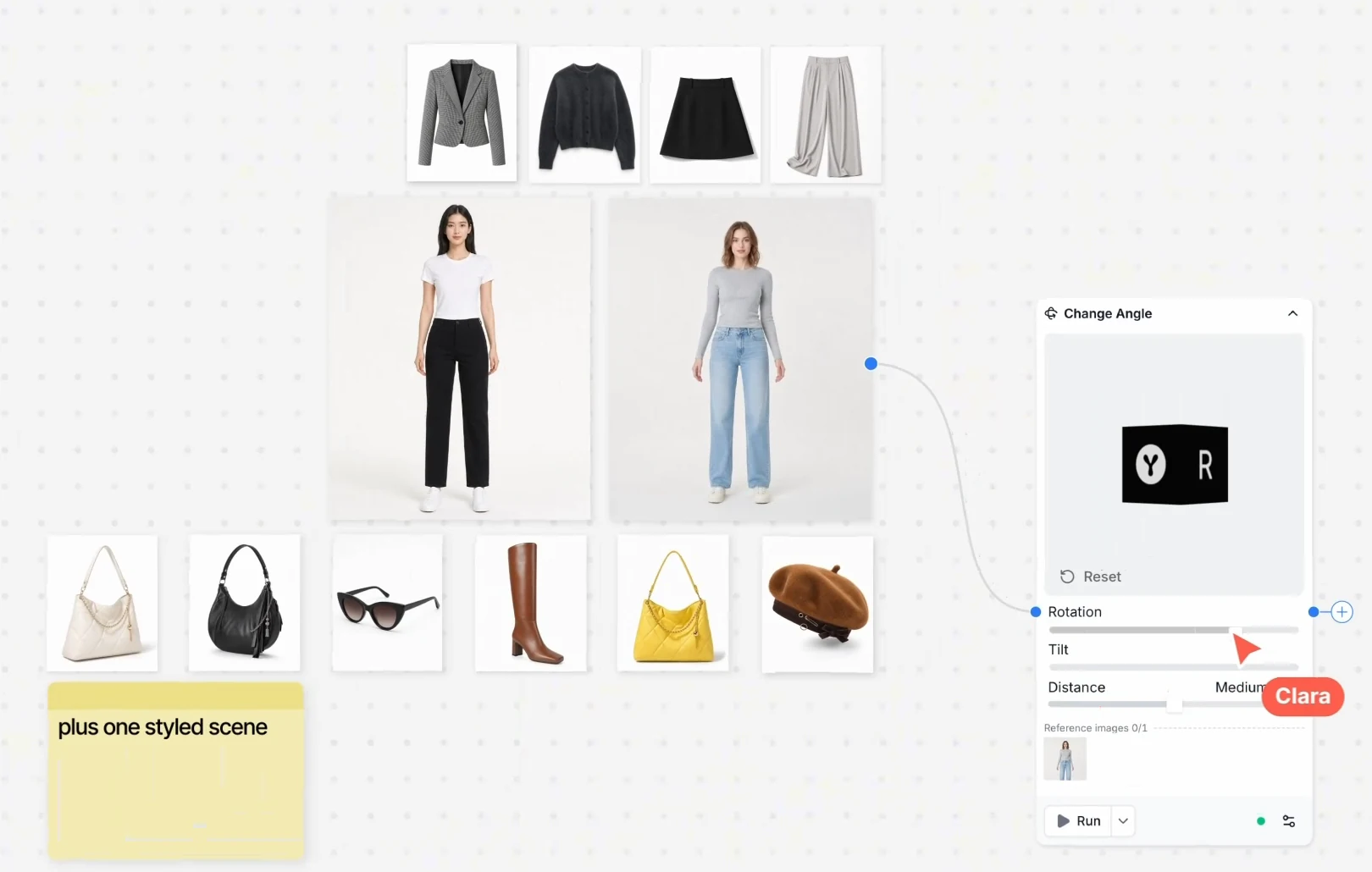
The documented workflow builder connects creative steps. Use the selected image as a reference for a short clip where the operation supports it. Keep the initial motion simple and review the estimate before running it.
If you use agent assistance, check the proposed operations. Agent and chat actions have their own listed credit costs, so a long exploratory conversation should be part of the budget.
5. Review, export and preserve the reusable structure
Inspect the full-resolution image and full clip in the application you will use for delivery. Check dimensions, product accuracy, framing, playback and text. Separate AI generation from the finishing work you do elsewhere.
Save the reusable structure with clear input names and notes about what changes for the next project. This example workflow follows documented capabilities; its success criteria help you evaluate your own output rather than promise a particular generated result.
Choose the next tutorial by task →Understand credit balances →
Name the handoff between every stage
Learning how to use YouArt AI becomes easier when you can explain what each connection carries. Your reference supplies the subject, the image stage establishes the composition, and the video stage receives an approved image plus a motion direction. Keep the wording for the still separate from the wording for movement.
Before running a larger path, inspect one stage at a time. Confirm that the image operation is using the reference you intended, then check which image reaches the video input. A connection is useful because it makes the handoff visible. It does not remove the need to choose the right input or approve its result.
Build a reusable base and a clearly named experiment
Keep a base workflow with the accepted reference, image prompt and motion brief. Make a separate branch for a new background or camera direction. Label the experiment by the change you are evaluating so a successful variation is easy to recognize and an unsuccessful one does not overwrite the baseline.
For the next product, replace the product-specific reference and identity notes deliberately. Inspect each downstream stage before running it. A reusable structure saves setup decisions, while the new subject still needs its own approval. This is how to use YouArt AI as an organized creative process rather than a sequence of unrelated prompts.
Try an example creative brief
Build a reusable creative workflow
Define the delivery → connect the documented steps → review the operations → save a clear base structure.
Reusing a workflow does not guarantee identical output quality or usage cost.
Build a reusable creative workflow
Plan a reusable campaign workflow: permitted product reference → three image concepts → select one approved image → short, slow product-reveal clip. Keep each stage editable and show the operation settings before running it.
Frequently asked questions
Do I need to create an account?
Yes. Sign in through YouArt’s account flow to generate, then choose from the models and access modes available to your account.
What should my first project be?
One simple image and a restrained motion treatment are easier to judge than a multi-scene campaign.
Should I begin with the agent or a direct prompt?
A direct, narrow prompt makes individual operations easier to understand. Use the agent when you can inspect the proposed workflow and its usage.
Can I save time by reusing a workflow?
A repeatable structure can reduce setup work, but each new reference and output still needs review. It does not guarantee identical results.
What should I keep after the session?
Retain the brief, permitted references, prompts, settings, all attempts, the accepted delivery and a record of the operations charged.